Running the Webpack Dev Server in a Container

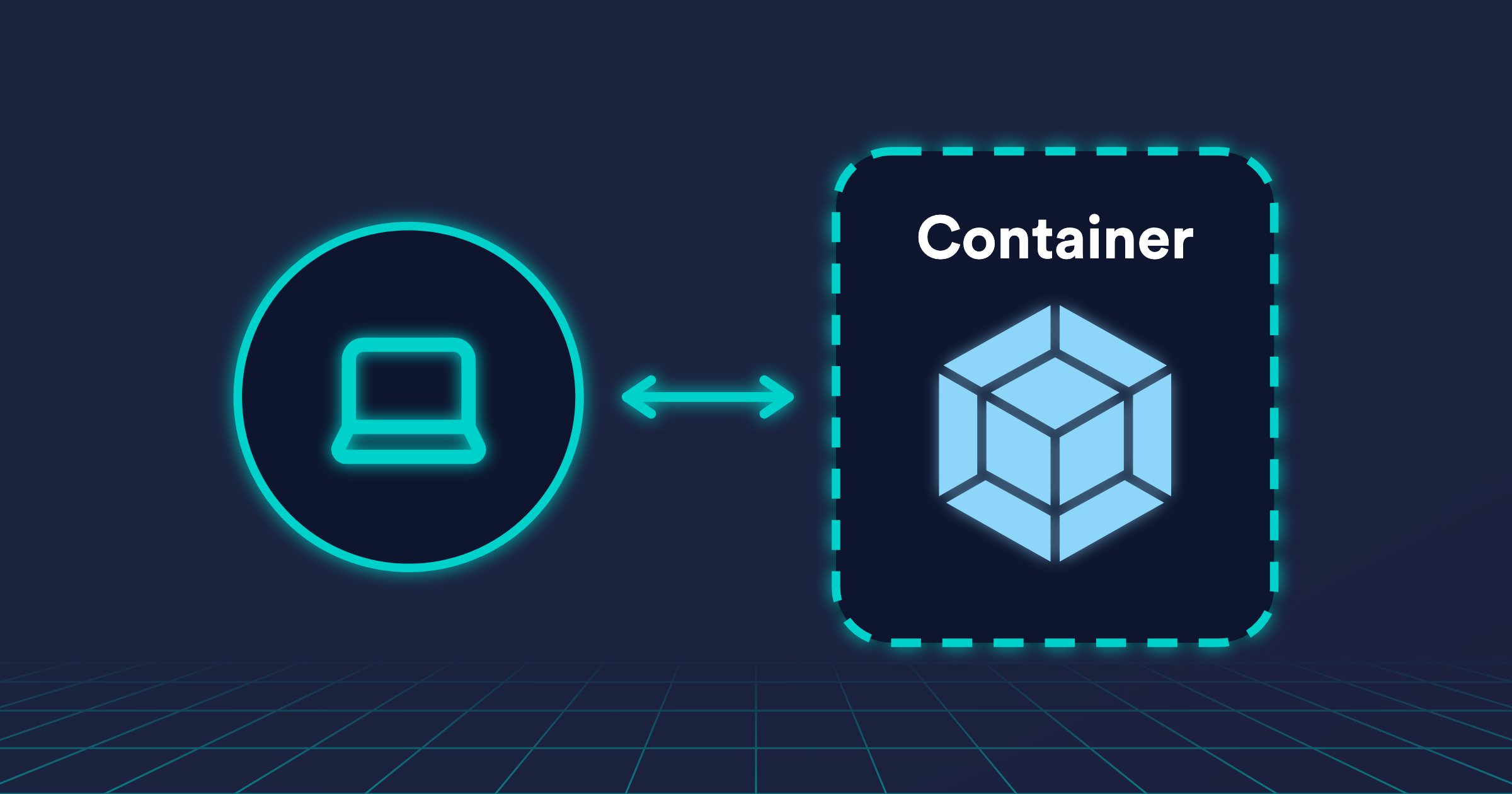
Running the Webpack dev server in a container gives everyone on the team the same Node.js version and the same dependencies, whether the container runs with Docker on your laptop or in a remote development environment. Your browser reaches the dev server through a port published to localhost, or through a proxy that serves it on its own domain over HTTPS.
The default configuration of the dev server assumes that it runs on your machine: it listens on localhost only, rejects requests for other hosts, and points hot reload to its own port. Four settings in webpack.config.js make it work in a container. This post uses Webpack 5.
The Container
This command runs the dev server in a container, with your code mounted into it and port 8080 published to localhost:
docker run --rm -it -p 8080:8080 -v "$(pwd)":/app -w /app node:22 npx webpack serve
Behind a proxy, such as a Kubernetes Ingress or the URL of a remote development environment, your browser reaches the same dev server on another host, over HTTPS on port 443.
Listening on All Interfaces
The dev server listens on localhost, which inside a container only accepts connections from the container itself. Set host to 0.0.0.0 so that the published port and the proxy reach it:
module.exports = {
  // ...
  devServer: {
    host: '0.0.0.0',
    port: 8080,
  },
};
Allowing the Proxy Host
The dev server rejects requests for a host that isn't localhost or an IP address, with the message Invalid Host header. Add the domain that the proxy serves your application on to allowedHosts. A leading dot matches every subdomain:
module.exports = {
  // ...
  devServer: {
    allowedHosts: ['.example.com'],
  },
};
Replace example.com with the domain of your proxy. allowedHosts: 'all' turns off the check.
Hot Module Replacement Through the Proxy
Hot Module Replacement is on by default. Its client opens a WebSocket to the host and port of the dev server, which the proxy doesn't expose. Set webSocketURL to auto://0.0.0.0:0/ws so that the client uses the protocol, host, and port of the page instead: wss on port 443 through the proxy, and ws on localhost:8080 through the published port.
module.exports = {
  // ...
  devServer: {
    client: {
      webSocketURL: 'auto://0.0.0.0:0/ws',
    },
  },
};
Watching Files
Webpack detects changes with file system events. Some setups don't deliver those events to the container, such as bind mounts on Docker Desktop for macOS and Windows, or network file systems. If a change doesn't trigger a rebuild, turn on polling. watchOptions goes at the top level of the configuration, not inside devServer:
module.exports = {
  // ...
  watchOptions: {
    poll: 1000, // Checks for changes every second.
  },
};
Polling uses more CPU than file system events, so turn it on only when you need it.
The Complete Configuration
module.exports = {
  // ...
  devServer: {
    host: '0.0.0.0',
    port: 8080,
    allowedHosts: ['.example.com'],
    client: {
      webSocketURL: 'auto://0.0.0.0:0/ws',
    },
  },
  // Only if changes don't trigger a rebuild.
  watchOptions: {
    poll: 1000,
  },
};
Start the container, open your application, and edit a file: the page updates without a reload.